
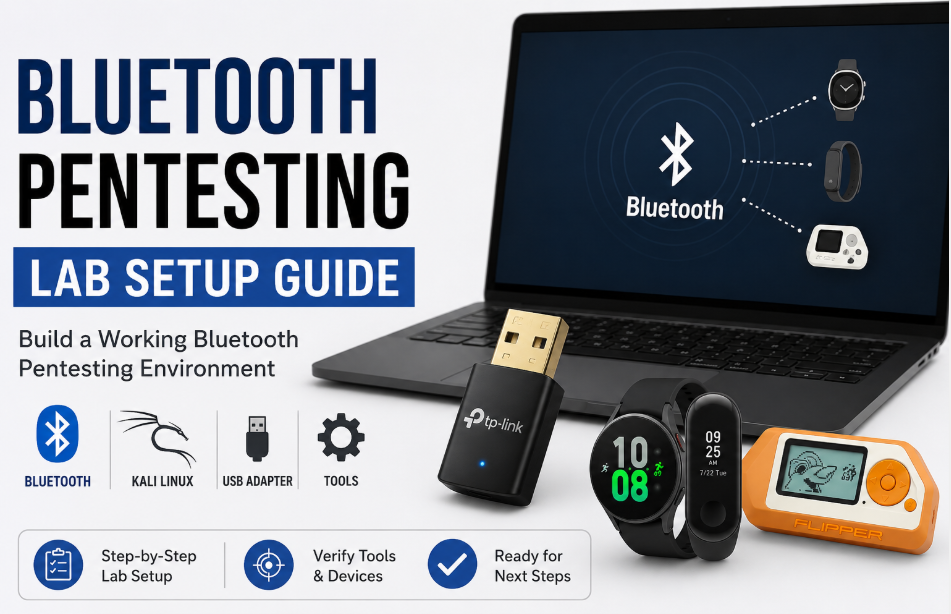
Bluetooth has become one of the most widely used wireless communication technologies in modern environments. From wireless keyboards, mice, headphones, smart watches, fitness trackers, and medical devices to industrial IoT sensors and smart home products, Bluetooth is present almost everywhere.
In this guide, we will build a complete beginner-friendly Bluetooth security lab using:
- TP-Link UB500 Bluetooth Adapter
- Flipper Zero
- Kali Linux or Ubuntu
- Android Smartphone
- Open-source Bluetooth tools
By the end of this article, you will have a fully functional Bluetooth security lab that will be used in the next article to perform Bluetooth reconnaissance, GATT enumeration, and practical security assessments.
Why Bluetooth Matters in Security Assessments
Many modern devices expose Bluetooth functionality without organizations even realizing it. Examples include:
- Smart watches
- Fitness trackers
- Wireless speakers
- Bluetooth-enabled printers
- Smart locks
- Asset tracking devices
- Medical devices
- IoT sensors
- Industrial monitoring systems
- Automotive infotainment systems
Unlike web applications that are accessible over the internet, Bluetooth communication typically occurs within physical proximity. However, this does not automatically make Bluetooth secure. Misconfigured Bluetooth services can expose:
- Device information
- User information
- Sensor data
- Configuration settings
- Authentication weaknesses
- Sensitive operational data
Understanding how Bluetooth communication works is therefore an important skill for modern security professionals.
Understanding Bluetooth
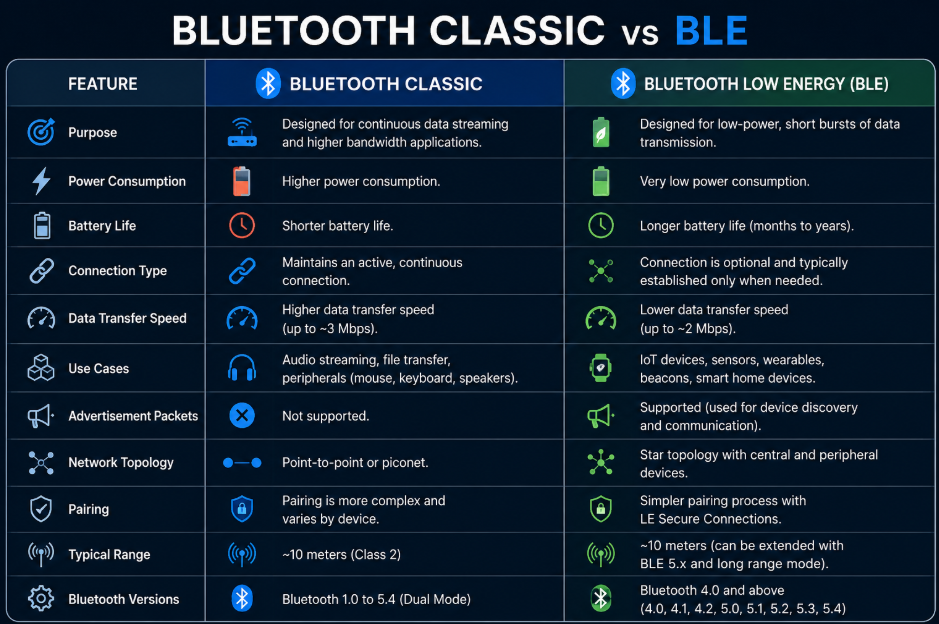
Bluetooth is a wireless communication protocol designed for short-range communication between devices. Bluetooth generally falls into two categories:
1. Classic Bluetooth:
Classic Bluetooth was designed for continuous communication and higher bandwidth requirements. Common examples:
- Wireless headphones
- Bluetooth speakers
- File transfers
- Wireless keyboards
- Wireless mice
Common Characteristics:
- Higher power consumption
- Continuous connections
- Audio streaming support
- Larger data transfers
2. Bluetooth Low Energy (BLE):
Bluetooth Low Energy was introduced to support low-power devices that need to transmit small amounts of data. Examples:
- Fitness trackers
- Smart watches
- Temperature sensors
- Smart locks
- Asset trackers
- Medical devices
Common Characteristics:
- Lower power consumption
- Advertisement-based communication
- Sensor-focused
- Longer battery life
Bluetooth Classic vs BLE
Understanding Bluetooth Architecture
Before installing tools, it is useful to understand how Bluetooth communication is structured.
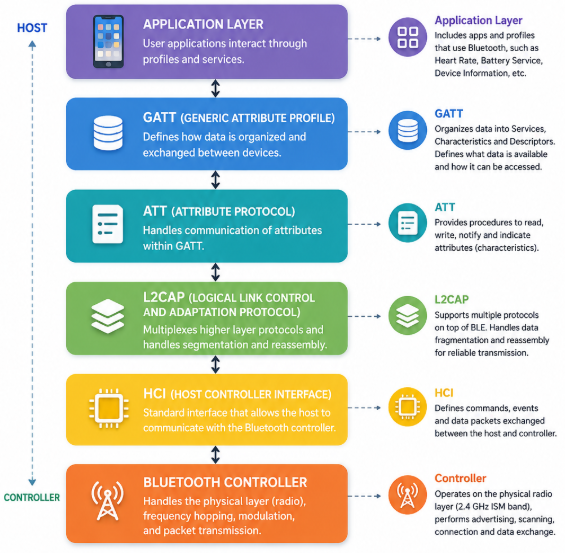
1. GATT: Generic Attribute Profile (GATT) defines how data is organized and exchanged between BLE devices. Examples:
- Heart rate values
- Battery percentages
- Device information
- Temperature readings
2. ATT: Attribute Protocol is responsible for communication between GATT services and characteristics. Think of ATT as the transport mechanism used by GATT.
3. L2CAP: Logical Link Control and Adaptation Protocol manages data transportation between Bluetooth devices.
4. HCI: Host Controller Interface acts as the bridge between software and Bluetooth hardware. Most tools such as bluetoothctl, btmgmt, Bettercap etc communicate through HCI interfaces.
Understanding BLE Communication
BLE communication generally follows four phases:
1. Advertising: A device announces its presence .Example is a smart watch broadcasting the below mentioned information:
- Device Name
- MAC Address
- Service UUIDs
- Signal Strength
Nearby devices can detect these advertisements.
2. Discovery: A scanner identifies nearby BLE devices. Example can be Your TP-Link UB500 detecting the below:
- Smart Watch
- Fitness Tracker
- Flipper Zero
- Android Device
3. Connection: A client initiates communication with the target device.
4. GATT Interaction: The client reads or writes information exposed through GATT services.
Hardware Requirements
The lab that we are going to focus on is an affordable and accessible hardware. The affordable hardware that we are using for demonstration and lab is TP-Link UB500, Android Smartphone and Smart Watch that some of us might use in a day to day basis. For the additional example we will also use a more expensive hardware Flipper Zero also. The intention behind using two different hardware devices at two different price points is also to see a comparison.
1. TP-Link UB500:
The TP-Link UB500 is an excellent entry-level Bluetooth adapter. Advantages of this are mentioned below:
- Bluetooth 5.0 support
- Linux compatible
- Affordable
- Small form factor
- Great for BLE discovery
It is Useful for Scanning, Enumeration, GATT analysis, Python automation and Bettercap reconnaissance. However there are limitations also as mentioned below:
- Not designed for packet injection
- Cannot replace professional Bluetooth analyzers
- Limited low-level radio capabilities
2. Flipper Zero:
Flipper Zero is an excellent learning platform. It is useful for:
- Bluetooth scanning
- BLE advertising
- Device discovery
- Demonstrating BLE behavior
- Portable testing
It is useful for learning scenarios like:
- Advertising simulation
- Beacon detection
- Bluetooth reconnaissance
Limitations of this includes:
- Not a dedicated Bluetooth sniffer
- Not a replacement for Ubertooth One
- Limited compared to professional analyzers
3. Android Smartphone:
4. Smart Watch
Open Source Bluetooth Tools Requirement
1. Kali Linux Distribution & Pre-installed Tools
2. BlueZ: BlueZ is the official Bluetooth stack for Linux.
Install BlueZ: sudo apt install bluez bluez-tools bluetooth -y
Verify installation: bluetoothctl --version
Expected output: bluetoothctl: 5.x
3. Bettercap: Bettercap contains useful BLE reconnaissance modules.
Install: sudo apt install bettercap -y
Verify: bettercap --version
4. Python BLE Libraries: We will later automate Bluetooth enumeration using Python.
sudo apt install python3-pip -y
pip3 install bleak
python3 -m pip show bleak
Proposed Bluetooth Pentesting Lab Setup for Demonstration and Practice
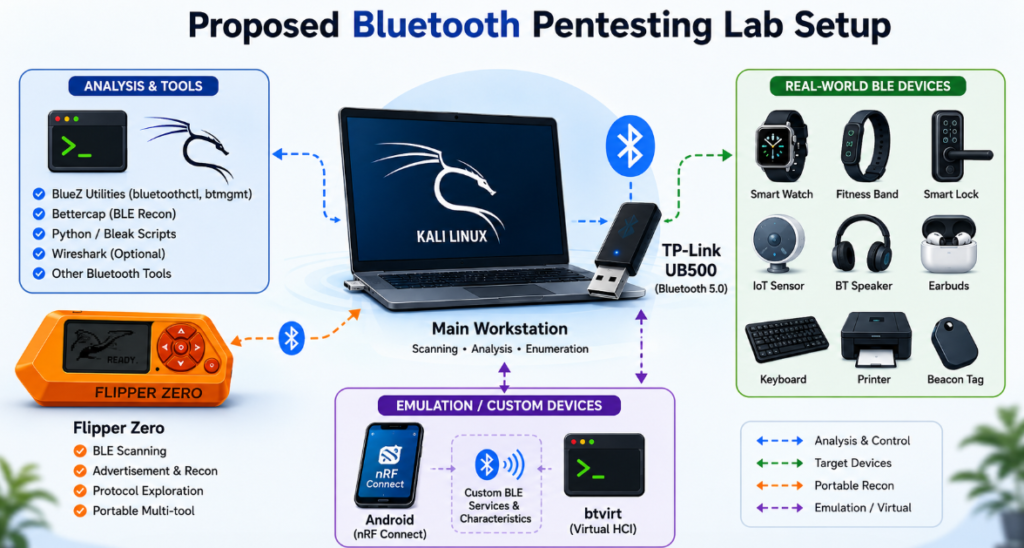
The workflow begins with the Kali Linux workstation, which communicates with the TP-Link UB500 Bluetooth adapter through the Linux BlueZ stack. The adapter continuously scans for nearby Bluetooth Low Energy advertisements and establishes connections with compatible devices whenever required. Real-world BLE devices such as smart watches, fitness trackers, wireless keyboards, or smart locks act as assessment targets, while the Flipper Zero and Android device provide controlled BLE advertisements and custom services for testing purposes.
Once devices are discovered, Bluetooth tools running on Kali Linux perform reconnaissance, enumerate available GATT services, inspect exposed characteristics, and gather information such as manufacturer details, RSSI values, UUIDs, and device capabilities. This controlled environment allows security professionals to safely understand Bluetooth communication before moving on to practical Bluetooth security assessments in the next part of this series.
Installing Required Packages
Install the tools used throughout this series:
sudo apt install -y \
bluez \
bluez-tools \
bettercap \
python3 \
python3-pip
Install the Bleak Python library:
pip install bleakAt this point the software required for the laboratory has been installed.
Understanding the Host Controller Interface (HCI)
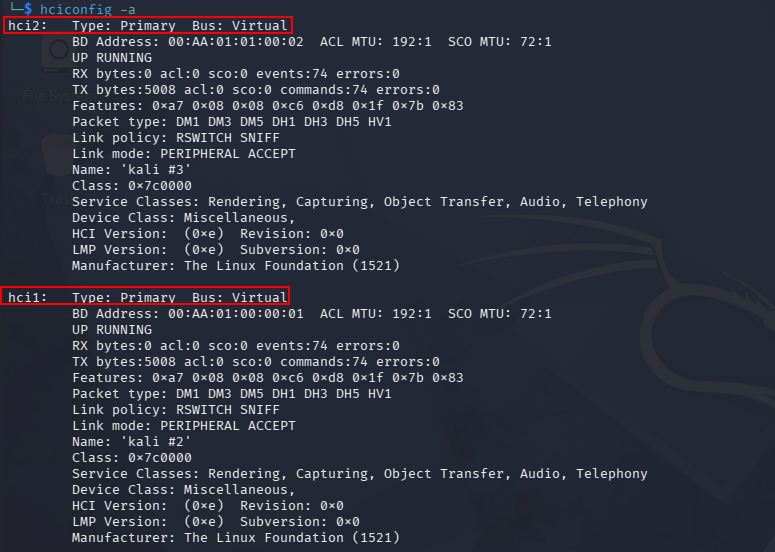
The Host Controller Interface (HCI) acts as the communication layer between the operating system and the Bluetooth adapter. Every Bluetooth adapter attached to the system appears as an HCI interface. For example hci0. If multiple adapters are connected, additional interfaces may appear as hci1, hci2 etc. Many Bluetooth tools communicate directly with these interfaces, making them one of the first things to verify after installation.
Verifying Bluetooth Hardware
Confirm that Kali detects the Bluetooth adapter:
hciconfigA correctly detected adapter should display an HCI interface similar to:
hci0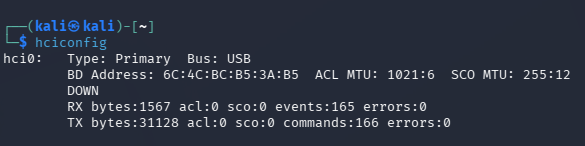
If no interface appears, verify that the adapter is properly connected and supported by the operating system before continuing.
Verifying Bluetooth Using bluetoothctl
Launch the Bluetooth management utility:
bluetoothctlEnable scanning:
scan on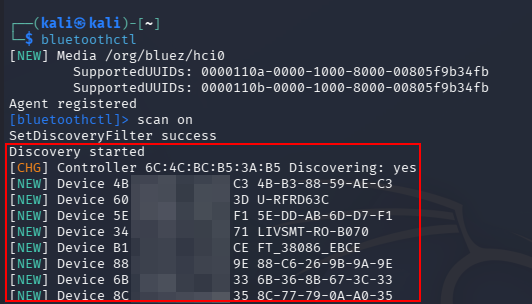
Nearby Bluetooth devices should begin appearing. For Example Galaxy Watch, Flipper Zero, Mi Band etc. At this stage, we are only confirming that Bluetooth communication is functioning correctly. Device discovery alone is sufficient to validate the laboratory environment.
Verifying Bluetooth Using btmgmt
The next verification step uses the Bluetooth Management utility.
Launch:
sudo btmgmtStart discovery:
find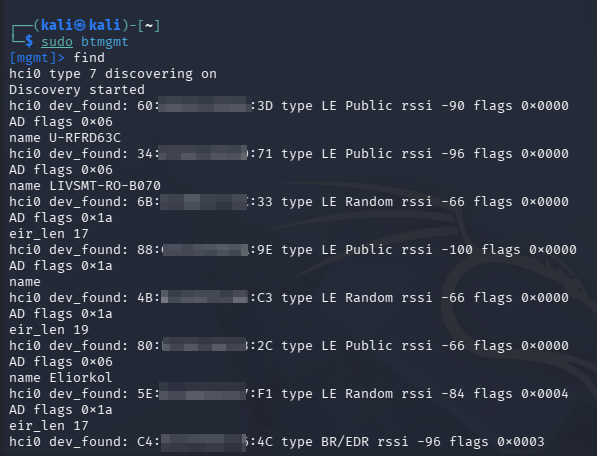
Nearby Bluetooth devices should again appear. Once devices are detected, stop discovery and exit. This confirms that the Bluetooth management layer is operating correctly.
Verifying Bluetooth Using hcitool
Although deprecated, hcitool is still commonly encountered in Bluetooth security research and many existing tutorials.
Run:
sudo hcitool lescan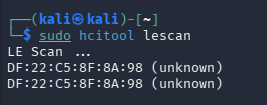
Nearby BLE devices should appear. Again, the objective here is not reconnaissance or enumeration. We are simply confirming that the adapter can detect nearby Bluetooth Low Energy devices.
Verifying Bettercap Installation
Now that the Bluetooth adapter and BlueZ utilities are working correctly, the final component of our lab is Bettercap. Although Bettercap will be used extensively in the next article for Bluetooth reconnaissance and advertisement analysis, at this stage our objective is simply to confirm that the framework is correctly installed and capable of interacting with our Bluetooth adapter.
Launch Bettercap:
sudo bettercapStart the BLE module:
ble.recon onDisplay detected devices:
ble.showIf nearby Bluetooth devices appear, Bettercap is successfully communicating with the Bluetooth adapter. No further configuration is required at this stage.
Verifying the Bleak Python Library
Our lab will also make use of Python during later articles.
Open Python:
python3Import Bleak.
import bleakIf no errors are displayed, the Bleak library has been installed successfully and is ready for future Bluetooth automation tasks.
Exit Python.
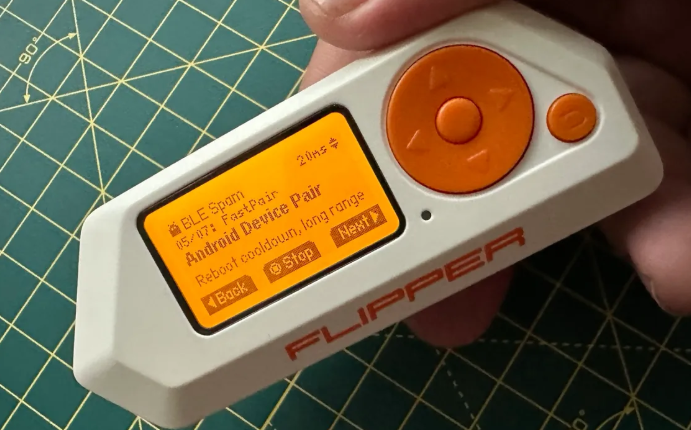
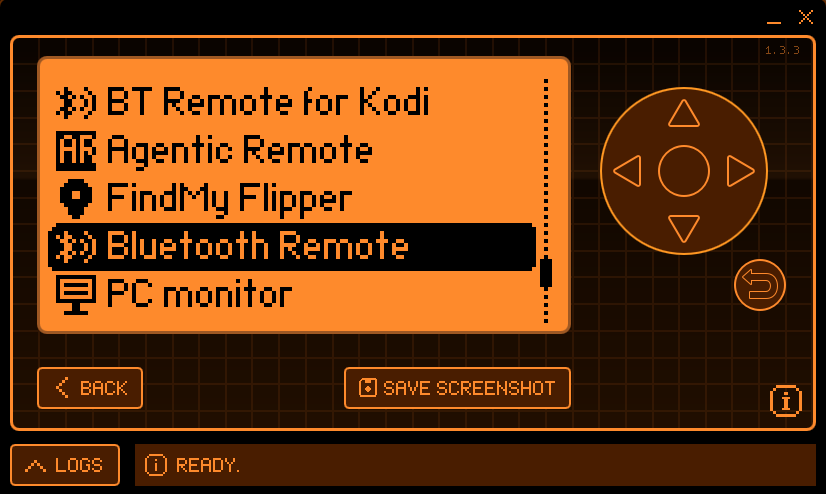
exit()Verifying Flipper Zero
Enable Bluetooth on the Flipper Zero. Within a few seconds, verify that it appears in one of the previously tested utilities, such as:
- bluetoothctl
- btmgmt
- Bettercap
Verifying Android as a BLE Test Device
Install nRF Connect from the Play Store on your Android device. Create a simple Heart Rate Service using the application’s peripheral mode. Once broadcasting begins, verify that Kali Linux detects the Android device using any of the Bluetooth verification tools covered earlier. This confirms that your Android phone is ready to act as a controllable BLE target during future exercises.
Creating a Virtual Bluetooth Interface with btvirt
Some Bluetooth experiments can be performed without physical hardware by creating virtual Bluetooth adapters.
Create an additional virtual interface:
sudo btvirt -l2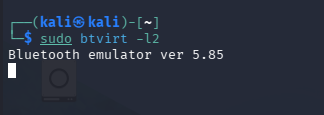
A new interface such as “hci1” should now appear. We will use this virtual adapter extensively in the next article when demonstrating Bluetooth communication workflows and testing scenarios.
Building a reliable testing environment is the foundation of every successful Bluetooth security assessment. In this guide, we installed the core tools required for Bluetooth testing, verified that our Linux system could communicate with nearby Bluetooth devices, confirmed Bettercap and the Bleak Python library were functioning correctly, and prepared both physical and virtual Bluetooth targets for future exercises.
At this point, no reconnaissance or security testing has been performed—and that is by design. The objective of this first article was simply to ensure that every component of the lab is installed, configured, and communicating as expected.
In the next article, we will build on this foundation by exploring Bluetooth reconnaissance techniques, discovering nearby devices, analyzing BLE advertisements, identifying services and characteristics, and understanding how attackers begin interacting with Bluetooth-enabled targets. With a validated lab already in place, you’ll be able to follow each practical demonstration without spending time troubleshooting your environment.
[…] Bluetooth Pentesting Lab Setup Guide: Building Your First BLE Security Lab with TP-Link UB500 and Fl… […]