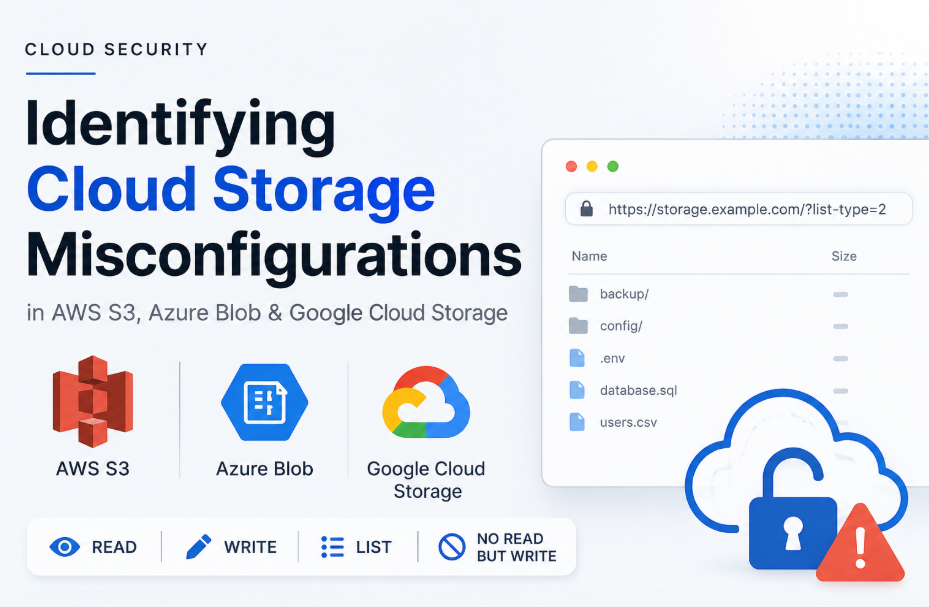
Object storage is where most of the internet’s data quietly lives like backups, user uploads, build artifacts, static website assets, logs, database dumps. It’s also where a huge share of real-world data breaches begin. Not through some exotic zero-day, but through a checkbox someone toggled wrong, a policy that was copy-pasted from different sources of internet, or a bucket that was “temporarily” made public two years ago.
This post is a hands-on reference for identifying and classifying storage misconfigurations across the three big providers AWS S3, Azure Blob Storage, and Google Cloud Storage (GCS). The goal is to understand the permission model well enough that, given a bucket URL, you can methodically determine exactly what an anonymous user is allowed to do and then know how to fix it.
Understanding Cloud Storage Permission Models
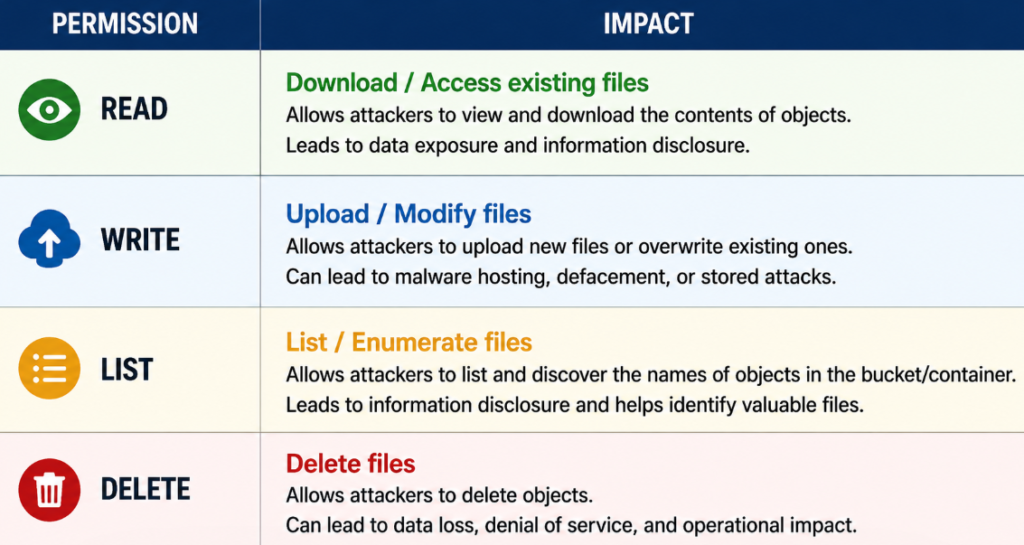
People intuitively think a bucket is either “public” or “private,” but in practice there are several independent capabilities, and any combination of them can be enabled.
- Read + Write enabled (the worst common case):
An anonymous user can both pull existing data and push new data. This is catastrophic: not only can data leak, but an attacker can host phishing pages or malware on your trusted domain, poison files that your own pipeline later consumes (think a JS file served to your users, or a config a server reads on boot), or overwrite legitimate content. If listing is also on, they don’t even need to guess filenames. - Read enabled, write disabled (the classic leak):
The most common serious finding. Data is downloadable. Whether listing is on determines how easy exploitation is with listing, the attacker downloads everything. Without it, they have to guess or discover object keys (more on this below). - Read disabled, write enabled (dangerous one):
This one trips people up. You test a GET request, get 403 Access Denied, and conclude the bucket is safe. But a write-only-anonymous bucket is still dangerous as an attacker can upload arbitrary objects. If that storage backs a static site, a CDN or anything a downstream system trusts, write-without-read is a real dangerous problem. Always test writes separately from reads as a read failure tells you nothing about write. - Listing enabled (read off):
Sometimes you can enumerate keys but not download them. Even this leaks information like filenames frequently contain customer names, internal project codenames, dates, version numbers, and structure that’s valuable for further attacks. Treat metadata leakage as a finding in its own right.
The practical takeaway here is to never conclude a bucket’s exposure from a single request. You probe each capability independently.
AWS S3 Misconfigurations Check
URL formats you’ll encounter:
S3 objects are reachable through several equivalent URL shapes. Recognizing all of them matters because a target might reference one form while another is easier to test:
#Virtual-hosted style (most common today)
https://my-bucket.s3.amazonaws.com/path/to/object
https://my-bucket.s3.<region>.amazonaws.com/path/to/object
#Path style (legacy, being deprecated but still works for many buckets)
https://s3.amazonaws.com/my-bucket/path/to/object
https://s3.<region>.amazonaws.com/my-bucket/path/to/object
#Dualstack / website endpoints
https://my-bucket.s3-website-<region>.amazonaws.com/
http://my-bucket.s3-website.<region>.amazonaws.com/
Useful Trick: If you only have a CloudFront/custom domain, you can often discover the underlying bucket name from a 403/404 error body, from <bucket> tags in XML responses, or by checking historical DNS/cert transparency.Check 1 – Test listing with “?list-type=2” Query String
This is the parameter you asked about specifically. The S3 ListObjectsV2 API is triggered by adding “list-type=2” to a GET on the bucket root. The bare root URL sometimes returns a generic error, but the explicit V2 list call is the reliable way to test enumeration:
ListObjectsV2 - the modern listing call
curl -s "https://my-bucket.s3.amazonaws.com/?list-type=2"
Path style equivalent
curl -s "https://s3.amazonaws.com/my-bucket/?list-type=2"
For demonstration, showing two screenshots, first without “?list-type=2” which gives us a 403 Forbidden message and second with “?list-type=2” query string which lists the objects.
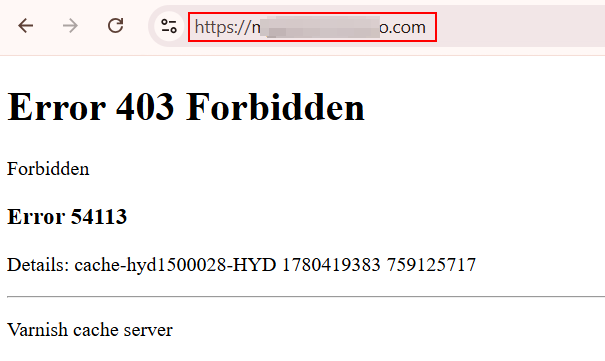
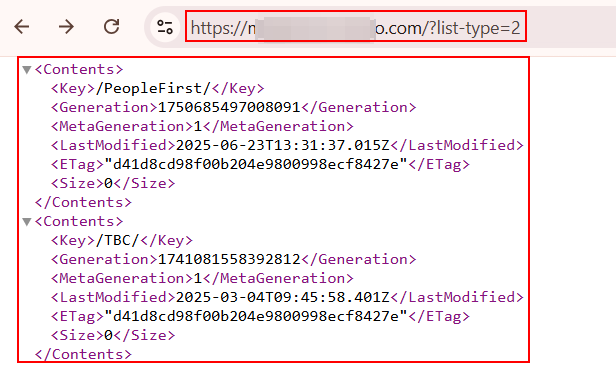
The reason for “list-type=2” specifically is that original ListObjects (V1) is the default when you hit the bucket with no parameters, but its behavior and error surface differ slightly, and some bucket configurations or fronting layers respond to one and not the other. Explicitly requesting V2 is the most consistent test. If V2 is blocked, it’s worth also trying the bare GET / (V1) occasionally a policy denies one action name but not the other.
Check 2 – Test reading a specific object
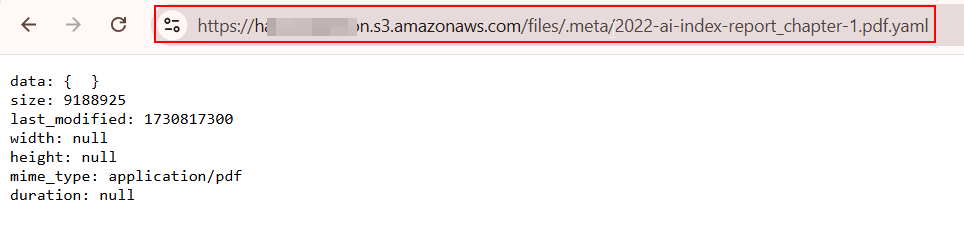
If listing gave you keys, test downloading one. If listing was denied, you’ll need a candidate key from the application’s HTML/JS, from a referenced URL, from guessing common names (backup.zip, .env, database.sql, config.json), or from wordlist-driven discovery.
Check if you are able to read files
curl -s "https://my-bucket.s3.amazonaws.com/internal/credentials.json"
200/HTTP 200 → readable
403 → read denied for that object
Note that read permission can be per-object (via object ACLs), so one key being 403 doesn't mean all are.
Check 3 – Test Write
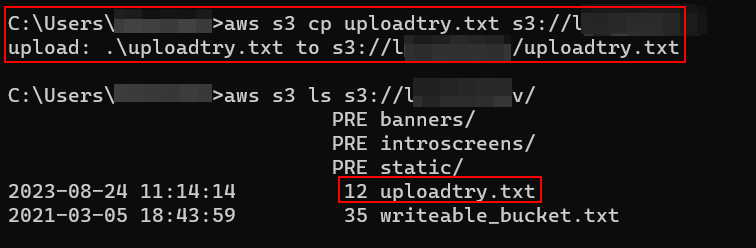
This is the step people skip. There are cases where a read will be disabled but write will be enabled. A write test must be its own probe:
Attempt an anonymous PUT
curl -s -X PUT "https://my-bucket.s3.amazonaws.com/pentest-write-check.txt" -d "authorized write test" -i
aws s3 cp file.txt s3://bucketname
Check 4 – Inspect ACLs and policy (No Sign Request)
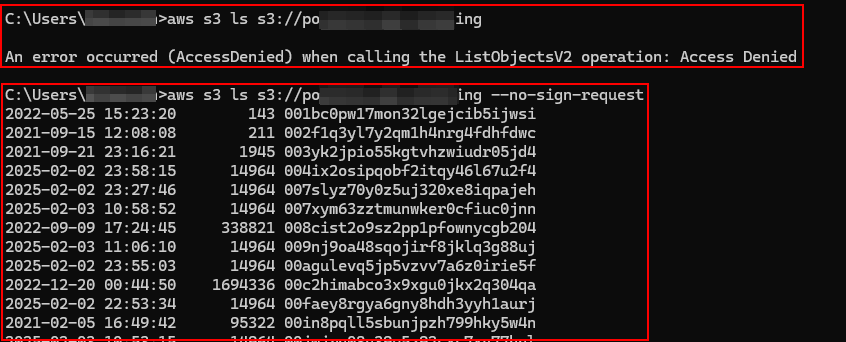
The flag that makes the AWS CLI behave like an anonymous attacker is “–no-sign-request” as it tells the CLI to send the request without signing it with any credentials, so you see exactly what the public sees. This is the cleanest of the three providers for anonymous testing.
#Anonymous listing via the CLI (no-sign-request = unauthenticated)
aws s3 ls s3://my-bucket --no-sign-request
aws s3 ls s3://my-bucket --no-sign-request --recursive
#Anonymous write test (no-sign-request = unauthenticated)
aws s3 cp /tmp/probe.txt s3://my-bucket/pentest-write-check.txt --no-sign-request
#Anonymous read of a specific object (no-sign-request = unauthenticated)
aws s3 cp s3://my-bucket/internal/credentials.json ./out.json --no-sign-request

Azure Blob Storage Misconfigurations Check
Azure’s model looks different on the surface but maps onto the same matrix. The hierarchy is: Storage Account → Container → Blob.
URL format:
https://.blob.core.windows.net//
Example:
https://contoso.blob.core.windows.net/staticfiles/images/logo.png
Anonymous access is governed by the container’s public access level, which has three settings:
- Private (no anonymous access) – The default and the safe one. Nothing is anonymously reachable.
- Blob – Anonymous clients can read individual blobs if they know the exact URL, but cannot list the container.
- Container – Anonymous clients can read blobs and list the container. This is the most exposed setting.
Note that at the storage-account level there’s also a master “Allow Blob anonymous access” toggle; if that’s off, no container can be public regardless of its own setting. Microsoft now defaults new accounts to disallow anonymous access, but plenty of older accounts predate that.
Check 1 – Test listing with the container list API
This is the Azure equivalent of ?list-type=2, and it’s the URL pattern you mentioned. Azure’s “List Blobs” operation is invoked by adding restype=container&comp=list to a GET on the container. Azure CLI or Curl can be used to check the listing ananomously.
curl -s "https://contoso.blob.core.windows.net/staticfiles?restype=container&comp=list"
curl -s "https://contoso.blob.core.windows.net/staticfiles?restype=container&comp=list&prefix=adsadsa"
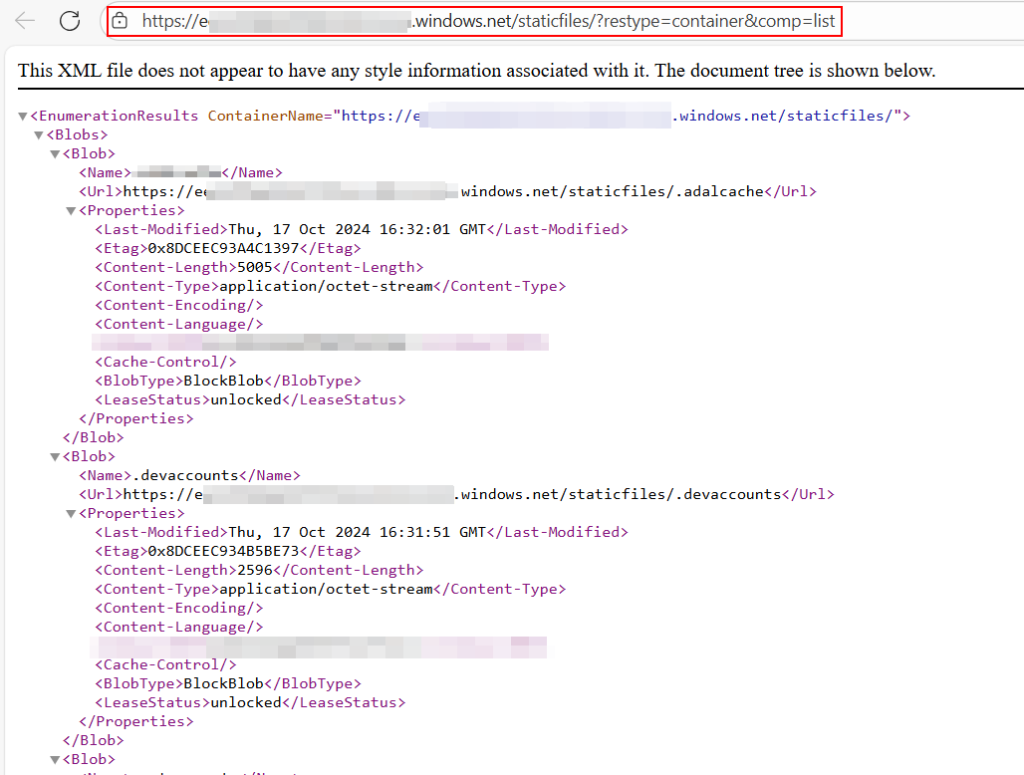
What the parameters mean:
- restype=container – Tells Azure the operation targets the container resource (not a blob).
- comp=list – The specific “list the blobs” sub-operation.
- prefix= – Optional filter that only returns blobs whose names start with . Useful for narrowing huge containers or probing for a guessed folder structure.
Check 2 – Test reading a specific blob
If the container is set to Blob (not Container), listing fails but direct reads succeed. So even when the list call 403s, try a known/guessed blob:
curl -s "https://contoso.blob.core.windows.net/staticfiles/config/appsettings.json"
200 → blob is anonymously readable. This is exactly the "read on, list off" quadrant the data is exposed to anyone who can guess or discover the path, even though the container won't enumerate.
Check 3 – Test write
Anonymous write to Azure Blob is rarer because it requires either a misconfigured SAS token in a URL or unusual ACLs, but test it when you have authorization. A blob PUT requires the x-ms-blob-type header:
curl -s -X PUT -H "x-ms-blob-type: BlockBlob"
-H "Content-Type: text/plain" \
--data "authorized write test" \
"https://contoso.blob.core.windows.net/staticfiles/pentest-write-check.txt" -i
Google Cloud Storage (GCS) Misconfigurations Check
GCS again maps onto the same matrix, with its own URL shapes and its own “everyone” principals. URL formats:
#Path style
https://storage.googleapis.com/<bucket>/<object>
#Virtual-hosted style
https://<bucket>.storage.googleapis.com/<object>
JSON API endpoint (used for structured listing)
https://storage.googleapis.com/storage/v1/b/<bucket>/o
The Two anonymous principals to know:
- allUsers => Literally anyone on the internet.
- allAuthenticatedUsers => Anyone with any Google account (again, effectively public).
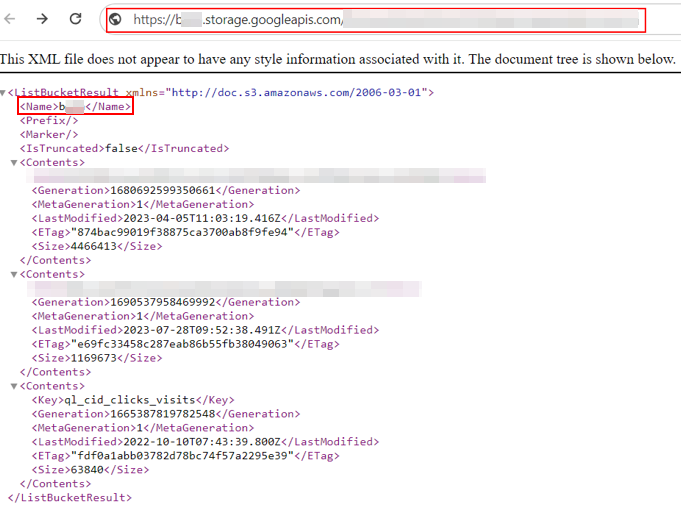
Check 1 – Test Listing
GCS gives you two listing paths. The XML API (mirrors S3’s style) lists by hitting the bucket root:
curl -s "https://storage.googleapis.com/my-bucket"
The JSON API is the more explicit, structured listing and is the modern way to enumerate:
curl -s "https://storage.googleapis.com/storage/v1/b/my-bucket/o"
curl -s "https://storage.googleapis.com/storage/v1/b/my-bucket/o?prefix=exports/&delimiter=/"
Check 2 – Test reading a specific object
As always, a 403 on listing doesn’t preclude a 200 on a specific object.
curl -s "https://storage.googleapis.com/my-bucket/terraform.tfstate"
Check 3 – Test write
Anonymous upload attempt via the JSON API (insert/upload)
curl -s -X POST \
-H "Content-Type: text/plain" \
--data "authorized write test" \
"https://storage.googleapis.com/upload/storage/v1/b/my-bucket/o?uploadType=media&name=pentest-write-check.txt" -i
Cloud storage security assessments should go far beyond checking whether a file can be downloaded. Modern cloud environments frequently expose data through listing APIs, CDN integrations, object enumeration mechanisms, prefix filtering, and write-enabled containers. A CDN endpoint may unintentionally expose the underlying storage backend even when direct bucket access appears restricted.
For VAPT and Red Team engagements, cloud storage should always be treated as a high-value attack surface. Thorough testing of read, write, list, and enumeration capabilities often reveals sensitive information that traditional web application testing may completely miss.