In modern enterprise environments, aggressive network scanning is no longer always practical or permitted. Mature organizations deploy IDS/IPS systems, EDR solutions, and strict change-control policies that quickly flag noisy reconnaissance or scanning activity. During internal pentests or red team engagements, operators are often restricted from installing external tools, running mass scans, or generating suspicious traffic patterns as it might be against their internal policies, take down some services in production or slow services. In these scenarios, stealth becomes not just an advantage but an essential skill. This is where native command-line utilities shine.
With nothing more than built-in tools like ping, tracert/traceroute, arp, netstat, telnet, Test-NetConnection, and curl, a skilled individual can accurately identify operating systems, distinguish servers from network appliances, detect management interfaces, and map infrastructure roles, all of this while maintaining a minimal footprint. By understanding protocol behavior, TTL values, port combinations, and service responses, you can transform simple system commands into powerful reconnaissance techniques. This guide focuses entirely on:
- Native Windows commands
- Native Linux commands
- Minimal network noise
- Behavioral interpretation
- TTL, port logic, banner grabbing
- Infrastructure identification using built-in utilities
1. TTL-Based Identification (Using Default Ping)
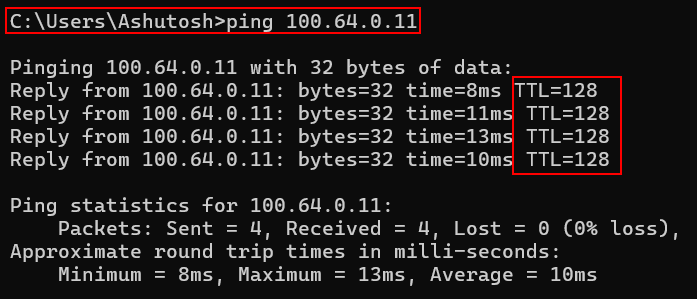
Windows Command:ping 100.64.0.11
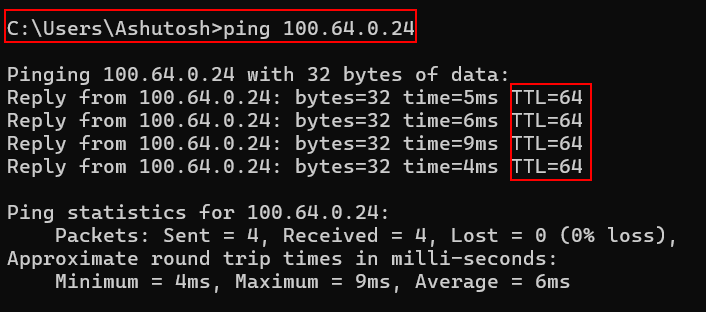
Linux Command:ping -c 1 100.64.0.11
TTL – 128:
TTL of 128 indicates Windows Operating System in use.
TTL – 64:
TTL of 64 indicates Linux System in use.
TTL – 225:
TTL of 225 indicates Network Devices in use.
However, always remember TTL is an indicator, not confirmation always.
2. Traceroute / Tracert (Path-Based Intelligence)
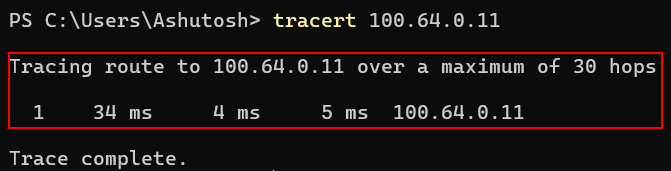
Windows Command:tracert 10.10.10.5
Linux Command:traceroute 10.10.10.5
This Reveals:
- Network segmentation
- DMZ boundaries
- Firewalls in path
- Internal routers
If only 1 hop → likely same subnet
Multiple hops → routed environment
3. Port Identification Using Native Utilities
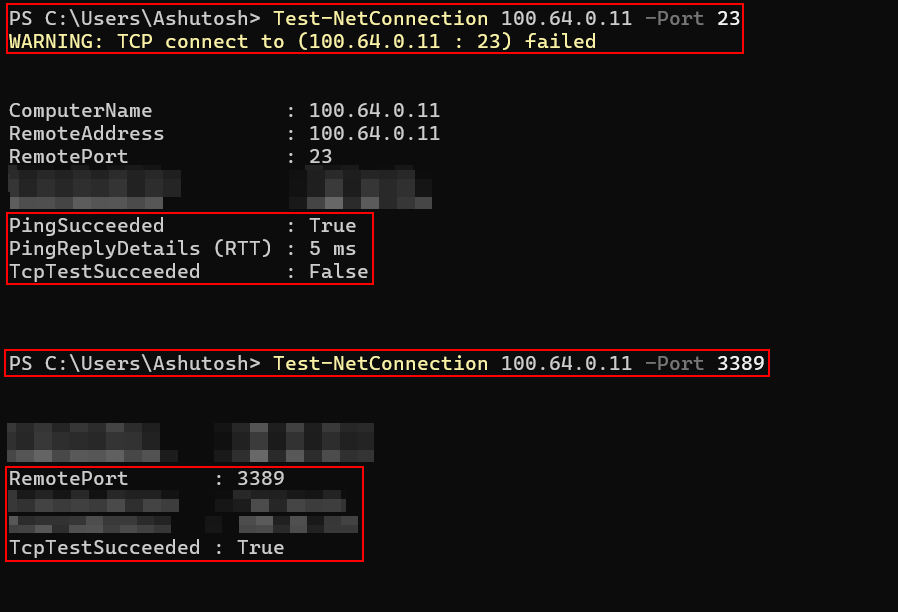
Port-based logic is extremely powerful. You don’t generally need Nmap to detect open ports and services. Using powershell, utilities (telnet, ftp, ssh etc), ports and services can also be enumerated. It enumerates it with very less noise.
Windows – Using PowerShell (Built-in):Test-NetConnection 10.10.10.5 -Port 23
Output:
Port is open incase of the following output.TcpTestSucceeded : True
To test common ports we can use it as shown below:Test-NetConnection 10.10.10.5 -Port 22
Test-NetConnection 10.10.10.5 -Port 23
Test-NetConnection 10.10.10.5 -Port 80
Test-NetConnection 10.10.10.5 -Port 443
Test-NetConnection 10.10.10.5 -Port 3389
Test-NetConnection 10.10.10.5 -Port 445
Test-NetConnection 10.10.10.5 -Port 161
Linux – Using Bash Built-in TCP:timeout 2 bash -c "</dev/tcp/10.10.10.5/22" && echo "Open"
4. Banner Grabbing Using Netcat (Often Preinstalled on Linux)
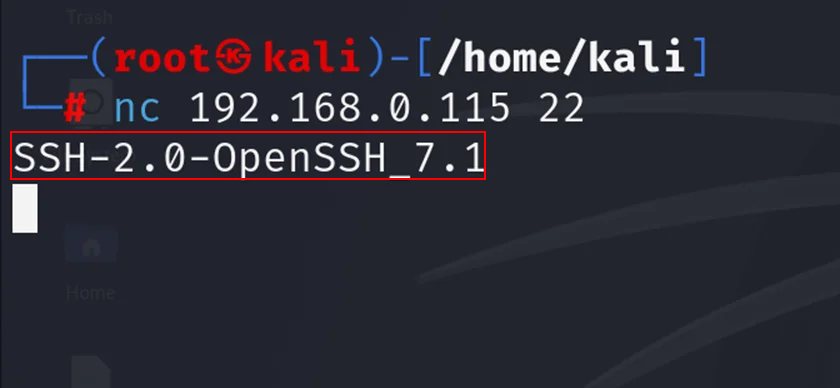
Using netcat can help in immediate OS and services identification
Linux Command:nc 10.10.10.5 22
Output:SSH-2.0-OpenSSH_8.2p1 Ubuntu
5. HTTP Header Identification (Curl)

Most Linux systems have curl by default and windows systems also have curl by default nowdays. Through the response obtained from the server we can identify the server and its versions.
Command:curl -I http://10.10.10.5
Expected Outputs:Server: Apache/2.4.41 (Ubuntu)
Server: Microsoft-IIS/10.0
Server: FortiGate
6. SNMP Detection (Using Built-in Utilities)
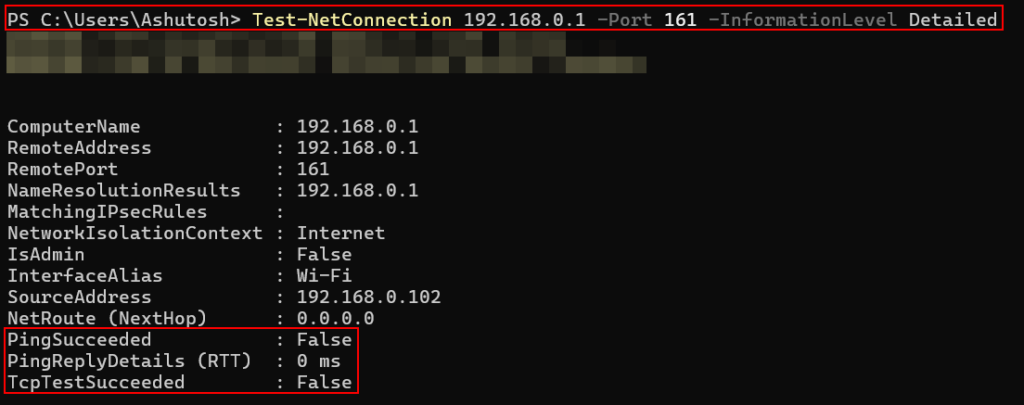
If SNMP is open, high chance it’s infrastructure.
Linux Command:nc -u -z 10.10.10.5 161
Windows PowerShell:Test-NetConnection 10.10.10.5 -Port 161 -InformationLevel Detailed
7. SMB Detection (Windows Native)
Windows Command:net view \10.10.10.5
If we are getting a response like “System error 53” then its likely blocked. If we are able to list shares then we are looking at windows or samba.
8. ARP-Based Detection (Internal Network Only)
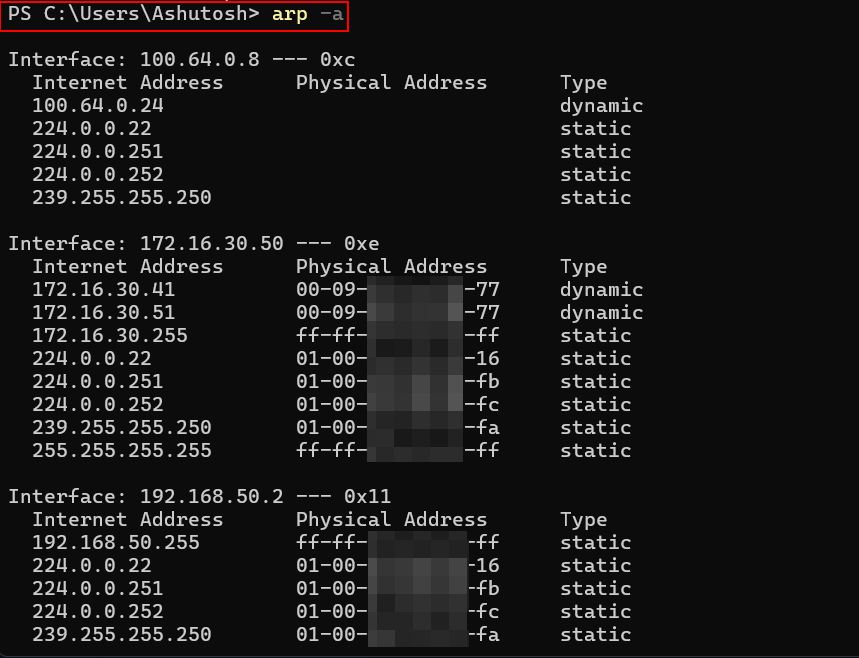
Windows Command:arp -a
Linux Command:arp -n
Shows the below and we need to analyze vendor OUI (first 3 bytes):
- MAC address
- IP mapping
Example:
00-50-56 → VMware
F4-CE-46 → Cisco
This helps in Identifying Virtual machines, Network appliances and Physical servers.
9. Telnet Port Behavior Insight
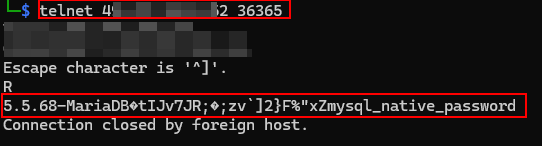
Telnet is always a strong infrastructure indicator. If you detect:
- Port 23 open
- TTL around 254
- SNMP open
You are likely dealing with:
- Router
- Switch
- Firewall
- Core infrastructure device
Telnet can also be used for banner grabbing and fingerprinting services and its versions.
Detecting network devices and servers during a pentest or red team exercise is not about how many tools you can install, it’s about how well you understand network behavior.
A careful port check exposes device roles. A simple curl -I request can disclose the underlying web stack. An arp -a output may quietly tell you whether you’re looking at VMware, Cisco, or physical hardware.
That is the key difference between automated scanning and professional reconnaissance. By correlating TTL values, Port combinations (e.g., Telnet + SNMP suggesting network infrastructure), Banner responses,
HTTP headers, ARP vendor prefixes, Traceroute behavior etc, You can confidently classify systems as:
- Windows servers
- Linux application hosts
- Domain controllers
- Routers and switches
- Firewalls
- Load balancers
- Hypervisors
- Management interfaces
Ultimately, tools amplify skill however but skill always comes first. A disciplined operator who understands protocol behavior can map an environment quietly, accurately, and professionally even with nothing more than native command-line utilities.
Leave a Reply